
Move your exact Panel Red values to a different phone and they will feel wrong — sometimes slightly, sometimes wildly. That is not imagination and not a fault: sensitivity is a relationship between software numbers and physical hardware, and the hardware changed. This guide explains the three hardware factors that matter — screen size, DPI, and touch behaviour — and how to recalibrate Panel Red DPI settings when you change devices.
Carry the method between phones, and recalibration is an afternoon. Carry only the numbers, and it is a month.
Screen Size: The Physical Half of Sensitivity
Sensitivity values describe movement relative to the screen. The same thumb swipe crosses a larger share of a small screen than of a large one, so identical values produce faster-feeling aim on compact phones. Players upgrading to a bigger phone often report their setup feeling 'slower' and raise values unnecessarily, when what changed is simply the canvas.
Calibrate on the new device with the drag test at two distances rather than by feel in matches; the test measures the new relationship directly. The routine is in our training testing guide.
DPI: What It Is and Whether to Touch It
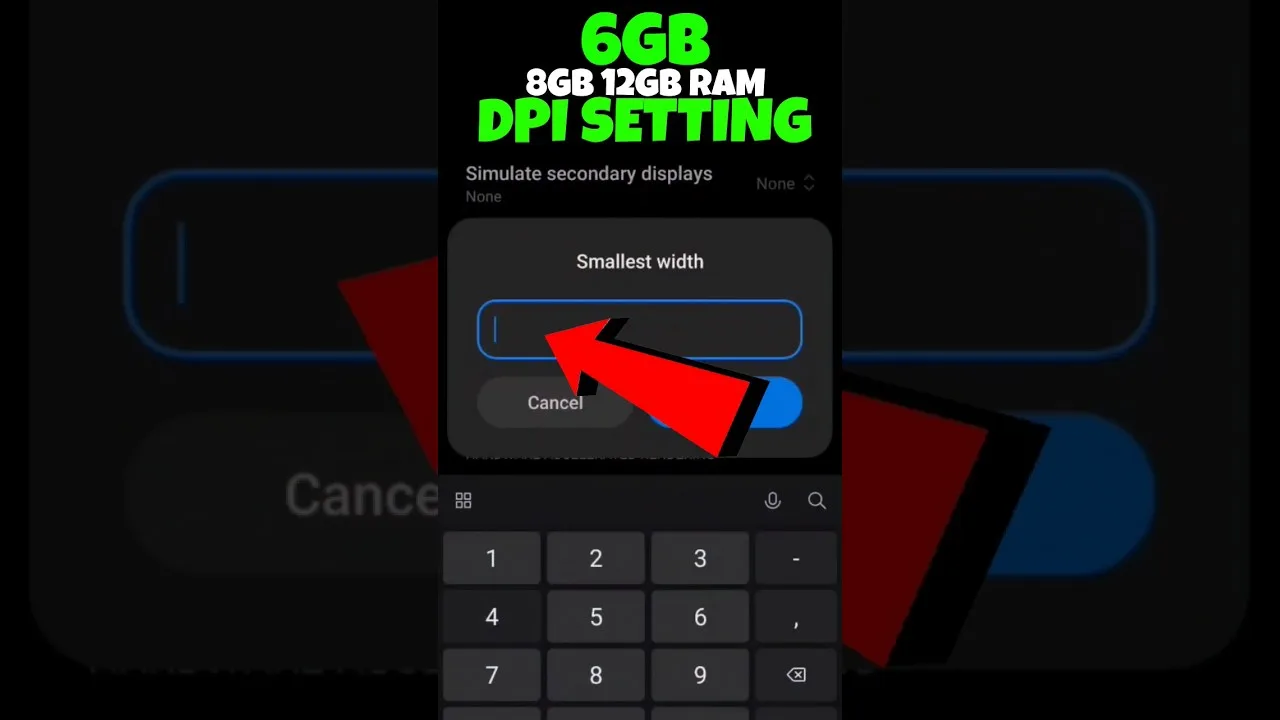
DPI — in the Android display-size sense — changes how large interface elements render and how the system scales reported movement, which can shift the effective feel of your sensitivity. Some players raise DPI to make the interface smaller and the movement feel different; it is a legitimate experiment with real trade-offs, including smaller touch targets and, on some devices, extra rendering load.
If you experiment, change DPI alone, note the original value first, and re-run your drag tests before touching any slider. Changing DPI and sliders together makes the result unreadable. Players on modest hardware should read our low-end phone guide before adding rendering load.
Touch Sampling and Response
Phones differ in how often the screen samples your thumb — a hardware specification rarely printed on the box. Higher sampling tracks fast drags more faithfully; lower sampling makes the same swipe feel steppier. No setting changes the hardware, but knowing it exists stops you blaming sliders for a device trait.
Where a device offers touch-sensitivity enhancements in system settings, they are worth one training session of testing. Keep them only if counted drills improve, not because they feel novel.
A Recalibration Checklist for a New Phone
Restore your written values as the starting point — they are the right neighbourhood even when they are not the right address. Run the drag test at two distances, adjust general first, then red dot, then verify scopes. Record the new set with the device name and date.
That checklist, executed patiently, is the entire secret of players whose aim 'survives' phone upgrades. There is no other secret.
Final Thoughts
Screen size scales your swipes, DPI shifts the system's ruler, touch hardware sets the fidelity ceiling. Understand the three, keep written values, and recalibrate by test rather than by feel — your aim becomes portable property instead of a hostage of one phone.