The defining frustration of a panel app is a panel that is not there: you start your session, reach for the controls, and nothing appears over the game. When Panel Red overlay fixes are needed, the cause is almost always one of three ordinary things — the overlay permission, Android's battery management suspending the app, or a stale process that needs a clean restart. This guide works through them in the order you should test.
Resist reinstalling as a first move. Reinstalls reset permissions and profiles alike, and nine times in ten the fix below takes two minutes without touching either.
Check the Overlay Permission First
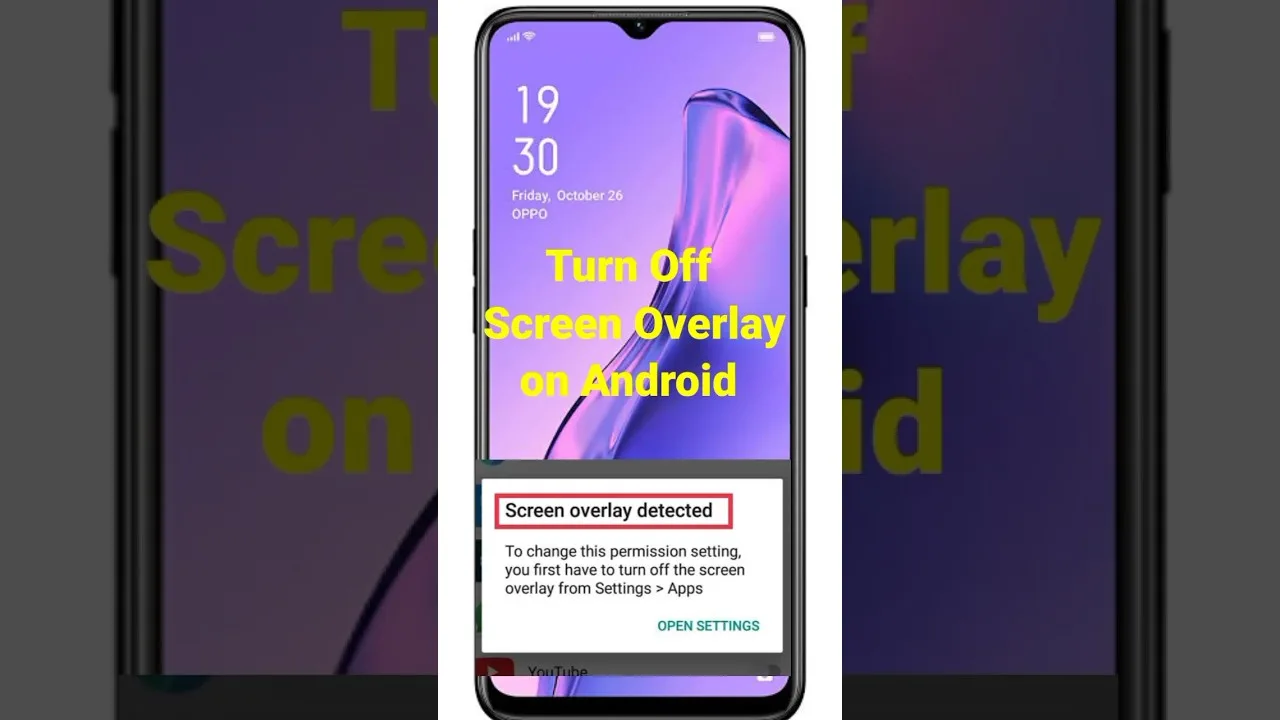
An overlay cannot appear without the draw-over-apps permission, and that permission can be lost — after an update, a system settings reset, or an overzealous cleaner app. Open Android's special-access settings, find the overlay list, and confirm Panel Red is allowed.
The meaning of this permission and its neighbours is explained in our permissions guide; if the toggle is off, switching it on and relaunching the app is the entire fix in the majority of cases.
Stop Battery Optimisation From Suspending the App
Modern Android is aggressive about putting background apps to sleep, and an overlay utility put to sleep is an overlay that vanishes — often mid-session, which is why this fault masquerades as randomness. Exempt Panel Red from battery optimisation in its app-info battery settings, then test a full session.
Phone brands bury this setting in different menus and some add their own extra power managers with app lists of their own. If the overlay still vanishes after the standard exemption, look for the manufacturer's own battery or autostart settings and allow the app there too.
Restart Cleanly, in the Right Order
Force-stop the app from its app-info screen, reopen it before opening the game, confirm the panel is available on the home screen or in a lightweight app, and only then start the game. Order matters: the overlay service must be alive before the game takes the screen.
If a phone restart is needed, do the same sequence afterwards. This clean-start order resolves the stale-process cases, which are the third great cause — especially after the app or the game has updated. Update-time quirks generally are covered in our update guide.
When It Still Will Not Show
If permission is granted, battery exemption is set, and a clean-order restart changes nothing, check the remaining ordinary suspects: storage nearly full, a second overlay app conflicting for the same screen space, or the game itself updated into a new behaviour. Disable other overlay utilities for one session to test the conflict theory.
Beyond that point the fault tree widens — our not working fixes take over with the deeper checks, including reinstalling as the last resort it should be.
Final Thoughts
Permission, power, process — in that order. Almost every invisible panel in history has been one of those three, and all three are two-minute checks. Run them before any drastic remedy and the panel will almost always be back by the next match.