
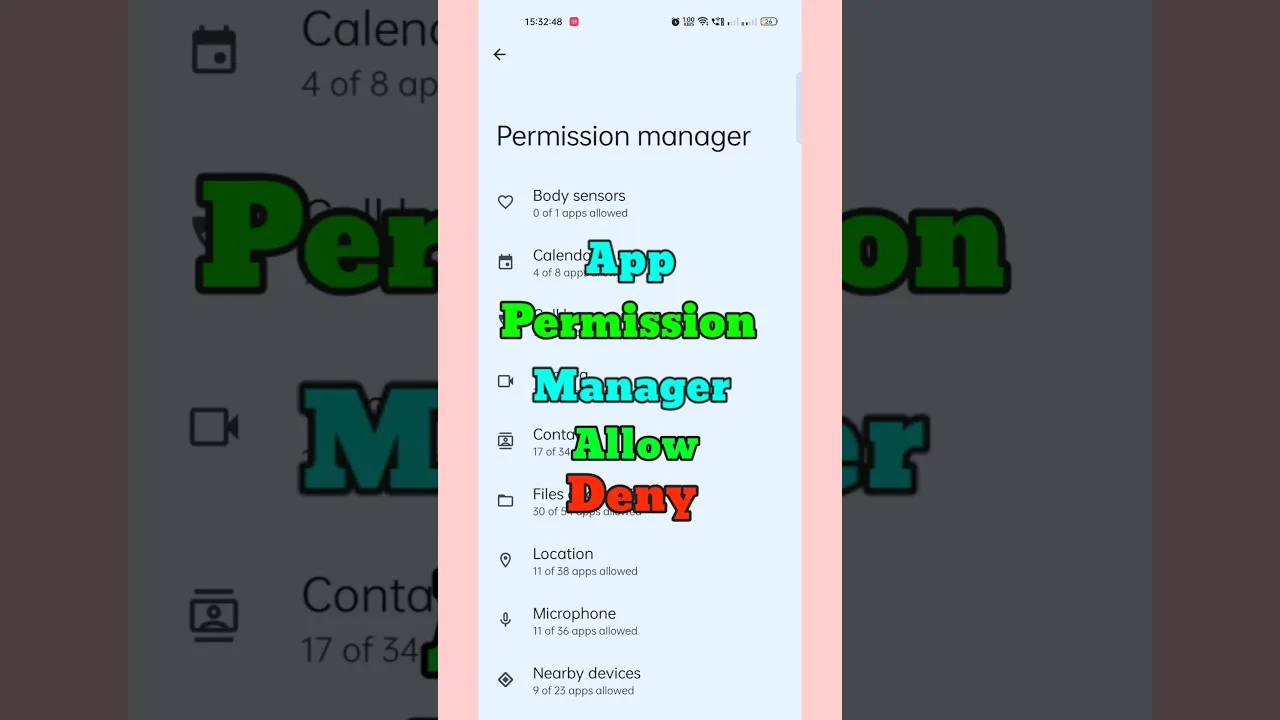
Android asks before it shares, and utility apps like Panel Red permissions prompts are simply that system at work. This guide explains, in plain language, the permissions a tuning app may request, what each one actually enables, and how to review or revoke them in Android settings — so the prompts stop being alarming and start being informative.
The governing idea: a permission is a capability, not a verdict. The sensible question is never 'why does it ask?' but 'does this capability match what the app does for me?'.
Display Over Other Apps
Panel-style tools commonly request the ability to draw over other apps, because their whole working method is an overlay — controls and indicators that remain reachable while the game runs. Without it, the app could not present its panel where you actually need it: mid-session, on top of the game.
This is also the permission to treat with the most respect generally, because an overlay can display content above anything. Grant it to apps you deliberately installed for that purpose — and review the list of apps holding it occasionally in Android's special-access settings.
Storage and Files
Access to storage serves ordinary purposes in a tuning app: saving your profiles and configuration so they survive restarts, and reading them back when you switch setups. Modern Android scopes this access narrowly, often to the app's own files, which is exactly as it should be.
If a version requests broader file access than its features explain, that is a legitimate reason to pause and check the source of your download before proceeding.
Notifications and Running in the Background
Notification permission lets the app surface a persistent control or status while it works; battery-related prompts exist because aggressive power saving can suspend a background utility mid-session. Granting an exemption from battery optimisation is a functional choice for tools you want alive during play — the same reasoning as for streaming apps.
You can inspect all of these after the fact: Android's app-info screen lists every granted permission, and revoking one is reversible — revoke, test whether the feature you care about complains, and re-grant if it does.
How to Review Permissions on Your Phone
Open Settings, then Apps, then Panel Red, then Permissions for the current state; the special-access screens for overlay and battery exemptions live under Settings' apps or special-access sections depending on the manufacturer. Spend two minutes there once and the whole system demystifies itself.
If the app itself ever behaves oddly after an update, permissions are part of the standard checklist alongside storage and cache — our not working fixes include them in the routine. Installation-time prompts specifically are covered in our installation guide.
Final Thoughts
Read each request by matching capability to feature: overlay for the panel, storage for profiles, background life for mid-session availability. Granted knowingly and reviewed occasionally, permissions are what they were designed to be — your control, exercised — rather than a leap of faith.